With Qt 6.12, the SkyMaterial is the limit

NOTE: This is a copy-pasted version of my blog post on the Qt blog.

Qt Quick 3D 6.12 introduces a new SkyMaterial QML type, and in this post we will explain what it is, how to use it and why you’d want to.

SkyMaterial provides a way of writing custom fragment shader code to render a scene’s sky, as well as computing image-based lighting (IBL) from it. This means the same sky acts as both the visible background and a light source for the scene. With it you can create a dynamic sky with a moving sun, day/night cycle, clouds, stars etc.

QML properties set on the SkyMaterial type are automatically made available in the custom shader, and whenever a property is updated, the SkyMaterial re-renders itself. This is what makes it possible to have a dynamic sky. Since the rendering is happening on the GPU, the performance cost depends on the complexity of the shader and how often it is updated. It is possible to tweak certain quality and performance properties to fit your performance budget.

To use SkyMaterial in your 3D scene you need to point the SceneEnvironment::skyMaterial property to your SkyMaterial object, and set SceneEnvironment::backgroundMode to SceneEnvironment.SkyMaterial.

A first sky

Let’s look at a minimal example of SkyMaterial in action:

import QtQuick
import QtQuick3D

Window {
    width: 800
    height: 600
    visible: true

    View3D {
        anchors.fill: parent
        environment: SceneEnvironment {
            backgroundMode: SceneEnvironment.SkyMaterial
            skyMaterial: SkyMaterial {
                fragmentShaderCode: `
                    void MAIN()
                    {
                        vec3 dir = normalize(qt_eyeDir);
                        // Map from [-1, 1] to [0, 1]
                        FRAGCOLOR = vec4(dir * 0.5 + 0.5, 1.0);
                    }
                `
            }
        }

        camera: PerspectiveCamera {
            position: Qt.vector3d(0, 100, 400)
        }

        Model {
            source: "#Cube"
            materials: PrincipledMaterial {}
        }
    }
}

And this is how it looks:
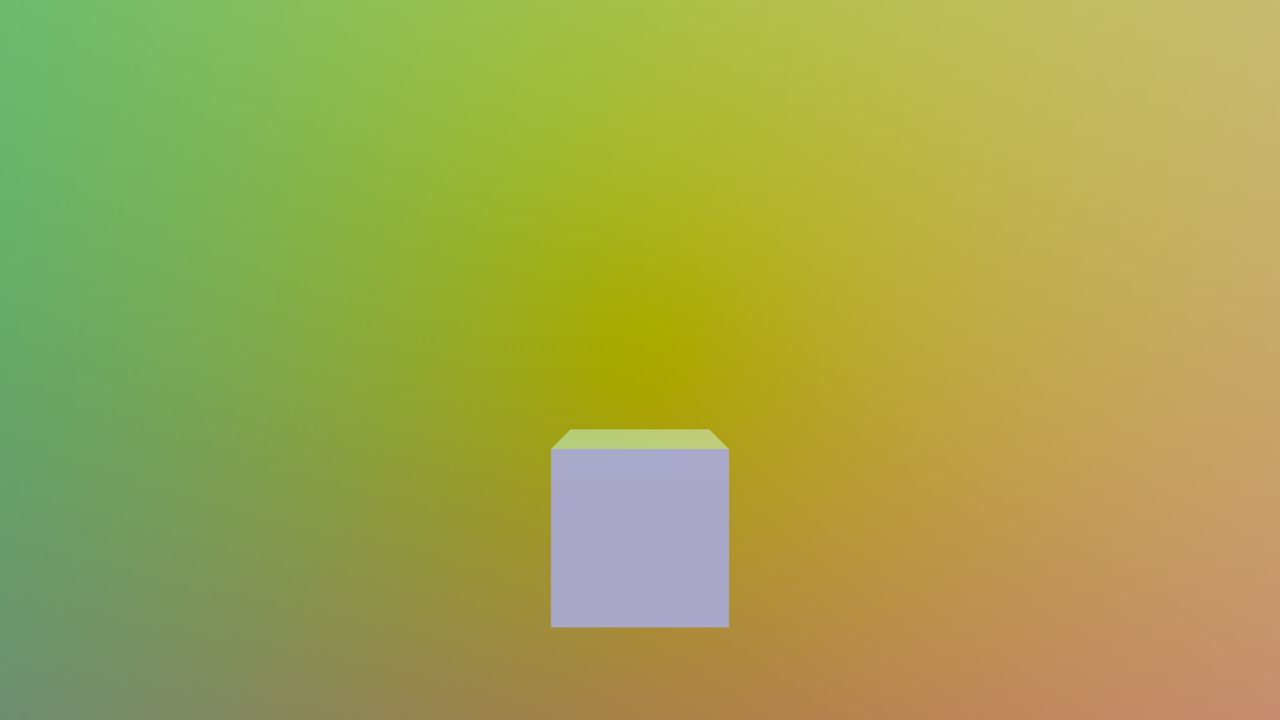
A cube against a sky colored by view direction

What we have here is a 3D scene with a cube in the middle and a SkyMaterial with the fragmentShaderCode set to an inlined custom fragment shader (use fragmentShader to load the shader from a file). The skyboxMode property is set to SkyMaterial.Cubemap by default which means the sky is rendered into a cubemap with the shader running for each of its six faces. Likewise, the enableIBL property is set to true by default, which also filters the cubemap into radiance and irradiance maps used for IBL. The irradiance map is what lights the cube, so each face takes on the color of the part of the sky it faces.

Let’s look at the shader. Firstly, it must define a MAIN() entry point, which is executed for each fragment generated while rendering the cubemap. The shader has access to the built-in variable qt_eyeDir, which provides the non-normalized direction vector from the center of the cubemap towards the fragment being rendered. The final pixel color must be written to FRAGCOLOR, which is the output variable of the fragment shader.

In the example above we color the FRAGCOLOR rgb components from the sampled direction just to verify that the shader is working.

Properties become uniforms

As mentioned earlier, compatible properties set on SkyMaterial will automatically be available in the shader. So let’s add a property and tweak our shader so it reacts to it:

skyMaterial: SkyMaterial {
    property real angle: 0
    NumberAnimation on angle {
        from: 0
        to: 360
        duration: 6000
        loops: Animation.Infinite
    }

    fragmentShaderCode: `
        void MAIN()
        {
            vec3 dir = normalize(qt_eyeDir);
            // Rotate the view direction around the Y axis by angle degrees.
            float a = radians(angle);
            float c = cos(a);
            float s = sin(a);
            vec3 rotated = vec3(c * dir.x + s * dir.z,
                                dir.y,
                                -s * dir.x + c * dir.z);
            vec3 color = rotated * 0.5 + 0.5;
            FRAGCOLOR = vec4(color, 1.0);
        }
    `
}

What we’ve added here is a real property angle and a NumberAnimation that acts on it. What this will do is rotate the view direction around the Y axis by angle degrees, so the sky makes a full rotation every six seconds. It looks like this:

Keep in mind that with every change of angle the sky and the IBL cubemap get re-rendered. The higher the resolution of the cubemap, the longer it takes, so tweaking the size using the radianceMapSize property can be useful.

If the sky changes every frame like here and you don’t need IBL, you can set enableIBL to false and skyboxMode to SkyMaterial.ScreenSpaceFull, SkyMaterial.ScreenSpaceHalf or SkyMaterial.ScreenSpaceQuarter. Then no cubemap or IBL is rendered, and the sky shader runs directly on screen instead, at full, half or quarter resolution. Note that this happens every frame, even when nothing changes, so for a sky that stays mostly static the default SkyMaterial.Cubemap mode is cheaper. It is rendered once into a cubemap and then just sampled from it.

Besides real, SkyMaterial supports the QML types that have a natural GLSL counterpart, such as int, bool, color, vectors, matrices and textures. See the SkyMaterial documentation for the full list of types and what they map to in GLSL.

A procedural sky

With these types of properties we can implement more advanced shaders, so let’s do that. This is how our new SkyMaterial object looks:

skyMaterial: SkyMaterial {
    iblSampleCount: 256

    property color skyTopColor: "#A5D6F1"
    property color skyHorizonColor: "#D6EAFA"
    property real skyCurve: 0.09
    property real skyEnergy: 1.0
    property color groundBottomColor: "#282F36"
    property color groundHorizonColor: "#6C655F"
    property real groundCurve: 0.02
    property real groundEnergy: 1.0
    property color sunColor: "#ffffff"
    property real sunLatitude: 35.0
    property real sunLongitude: 0.0
    property real sunAngleMin: 1.0
    property real sunAngleMax: 100.0
    property real sunCurve: 0.05
    property real sunEnergy: 1.0

    readonly property vector3d sunDirection: {
        const latRad = sunLatitude * Math.PI / 180.0
        const lonRad = sunLongitude * Math.PI / 180.0
        return Qt.vector3d(
            -Math.cos(lonRad) * Math.cos(latRad),
             Math.sin(latRad),
            -Math.sin(lonRad) * Math.cos(latRad)
        )
    }

    fragmentShaderCode: `
        const float PI = 3.14159265359;
        const float HALF_PI = PI * 0.5;

        float ease(float x, float c)
        {
            x = clamp(x, 0.0, 1.0);
            if (c > 0.0) {
                if (c < 1.0)
                    return 1.0 - pow(1.0 - x, 1.0 / c);
                return pow(x, c);
            }
            if (c < 0.0) {
                if (x < 0.5)
                    return pow(x * 2.0, -c) * 0.5;
                return (1.0 - pow(1.0 - (x - 0.5) * 2.0, -c)) * 0.5 + 0.5;
            }
            return 0.0;
        }

        void MAIN()
        {
            vec3 direction = normalize(qt_eyeDir);
            float vAngle = acos(clamp(direction.y, -1.0, 1.0));

            vec3 color;

            if (direction.y < 0.0) {
                float t = ease((vAngle - HALF_PI) / HALF_PI, groundCurve);
                color = mix(groundHorizonColor.rgb, groundBottomColor.rgb, t) * groundEnergy;
            } else {
                float t = ease(1.0 - vAngle / HALF_PI, skyCurve);
                color = mix(skyHorizonColor.rgb, skyTopColor.rgb, t) * skyEnergy;

                float sunAngle = degrees(acos(clamp(dot(normalize(sunDirection), direction), -1.0, 1.0)));
                vec3 sunRadiance = sunColor.rgb * sunEnergy;

                if (sunAngle < sunAngleMin) {
                    color = sunRadiance;
                } else if (sunAngle < sunAngleMax) {
                    float tSun = ease(
                        (sunAngle - sunAngleMin) / (sunAngleMax - sunAngleMin),
                        sunCurve
                    );
                    color = mix(sunRadiance, color, tSun);
                }
            }

            FRAGCOLOR = vec4(color, 1.0);
        }
    `
}

The scene now looks like this:
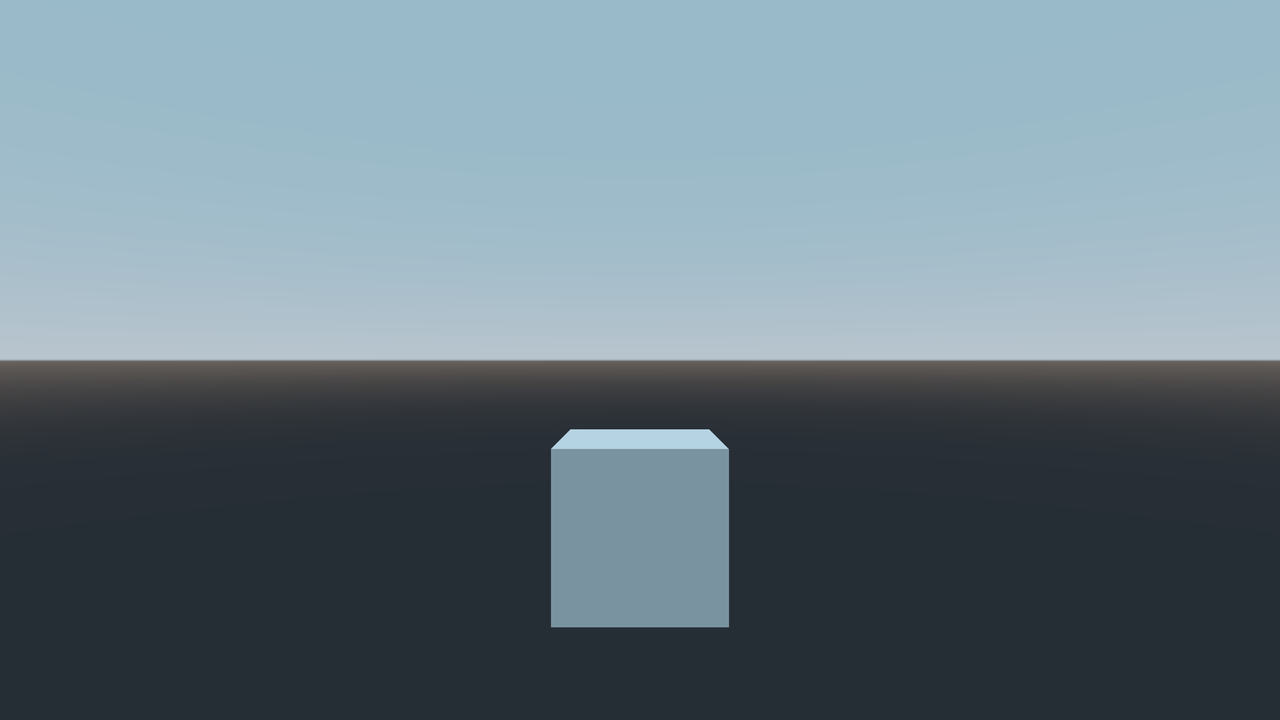
A cube against a procedural sky with a sun

The properties at the top control the colors of the sky and ground, and the position of the sun. The shader has access to all of them, and the sky is re-rendered whenever any of them change. The iblSampleCount property controls the number of samples used in the IBL computation, and by extension the visual quality of the generated radiance map. Since the sky is static here and only computed once we can increase it to get better visual fidelity.

Try it out

With SkyMaterial as the base you can go much further, and for an example of that you can achieve, check out the official Qt Quick 3D - Sky Material Example that comes with Qt 6.12. The example implements physically based atmospheric scattering with ray-marched clouds. It looks like this:

That’s it for this introduction to SkyMaterial in Qt 6.12. I hope it inspires you to create your own skies, and I look forward to seeing what you make!
Lightmap Baking and Other Improvements in Qt Quick 3D

NOTE: This is a copy-pasted version of my blog post on the Qt blog.

In this blog post I will discuss some of the recent improvements around lightmap baking, global illumination, and related technologies for making Qt Quick 3D scenes more realistic looking. I will talk mostly about lightmap baking improvements added in Qt 6.10, but also about two new features in the upcoming Qt 6.11 version, namely Screen-space global illumination (SSGI) and Screen-space reflections (SSR).

Lightmap Baking Improvements

With the release of Qt 6.10, the Qt Quick 3D module introduces major improvements around lightmap baking. If you’re building real-time 3D scenes with QML and want richer lighting with less runtime cost, this is for you. In this section I’ll walk you through what lightmap baking is, what’s new and why it matters.

What Is Lightmap Baking?

Lightmap baking is a technique used in 3D rendering to pre-calculate how light interacts with static objects in a scene.

Instead of computing lighting, shadows, and indirect light in real time, the lighting information is “baked” into special texture maps, called lightmaps, during an offline process. At runtime, these textures are sampled by the renderer, giving you realistic global illumination, soft shadows, and ambient light bounce at a fraction of the computational cost. The result is visually richer scenes that perform better, especially on mobile and embedded devices where GPU resources are limited.

Qt has had preliminary support for lightmap baking since version 6.4. In this post I will specifically focus on the improvements in 6.10, so for an in-depth explanation on how baking works and how to implement it in your application I suggest reading the official Qt documentation.

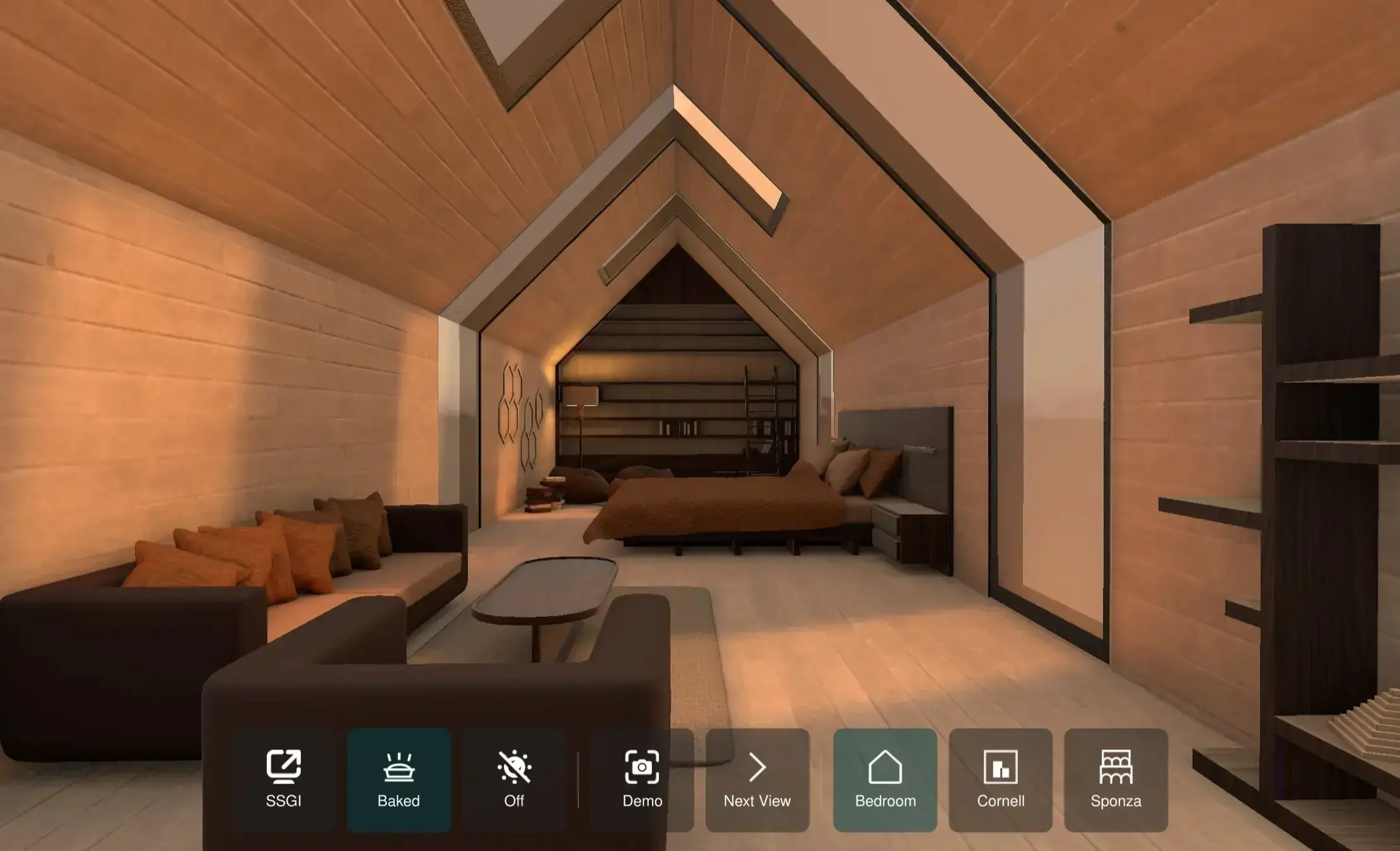
The image below shows a QtQuick3D scene with baked lighting.

Lightmap baking example in a Qt Quick 3D scene

What’s New for Global Illumination

There are several improvements to lightmap baking in Qt 6.10 especially around the ergonomics of baking and setting up your scene. I will focus on just the most important ones and go through them one at a time.

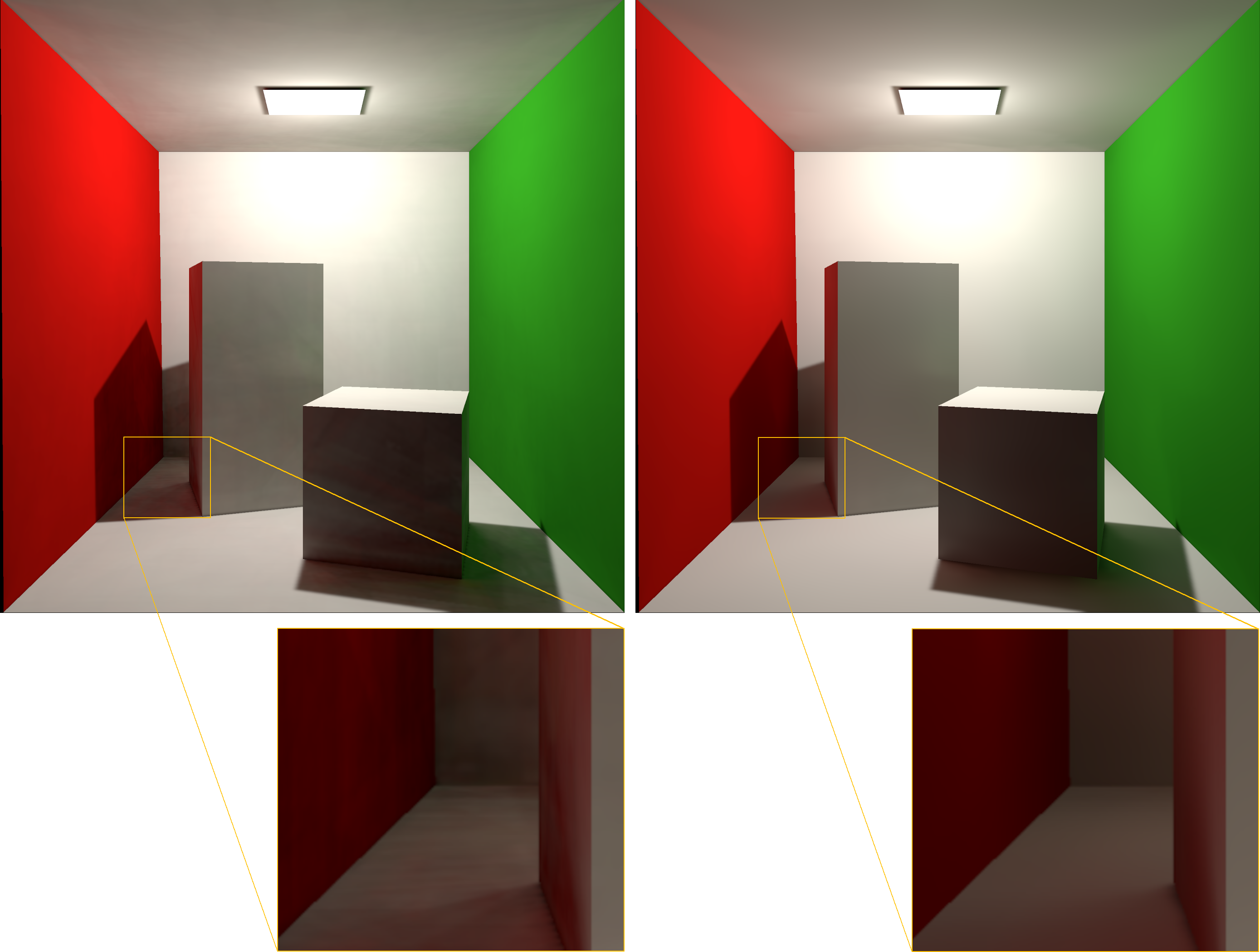
NLM-Based Built-In Denoiser

Qt Quick 3D in 6.10 includes a built-in Non-Local Means (NLM) denoiser that runs automatically after lightmap baking. The NLM algorithm reduces noise in the baked lighting by averaging similar regions across the image, removing random noise from the raytracing process. You can control its strength with the new Lightmapper::denoiseSigma property: lower values keep more texture detail but leave a bit more grain, while higher values produce smoother, cleaner results at the cost of some sharpness. This means you no longer need to post-process your lightmaps manually since Qt Quick 3D handles the denoising as a part of the bake step.

Comparing a noisy and denoised 3D lightmap

The above image shows the Cornell box scene using a noisy lightmap (left) and a denoised lightmap (right).

Lightmaps Based on Texels-Per-Unit

Qt Quick 3D in 6.10 introduces a new way of specifying the resolution of the generated lightmaps. Instead of having to specify fixed dimensions for each Model, you define the approximate number of lightmap texels that a unit surface in world space will have. This is referred to as texels-per-unit (TPU).

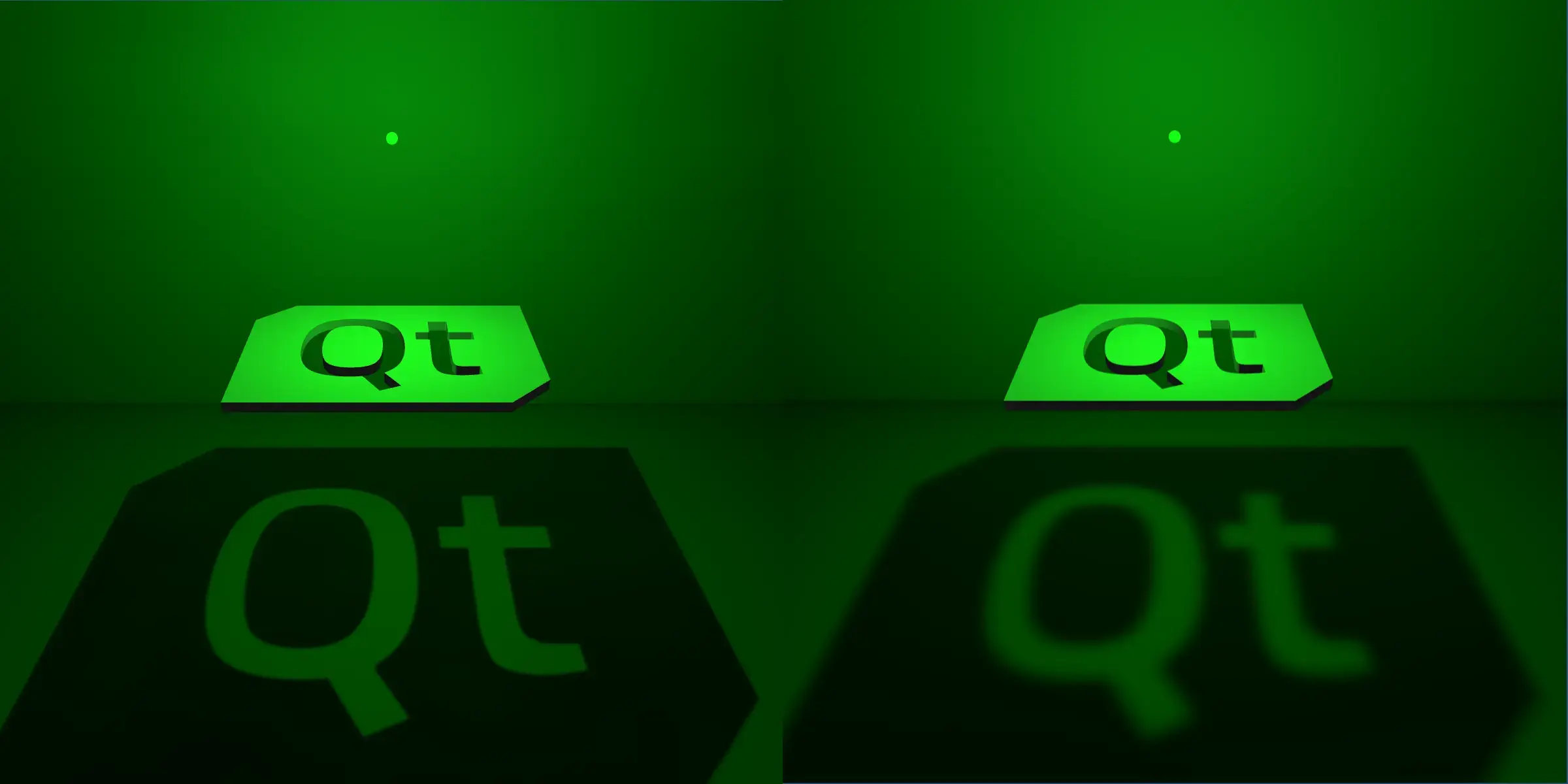
The TPU is set in the Lightmapper::texelsPerUnit, or Model::texelsPerUnit properties. This means that a 100x100 rectangle with a texels-per-unit value of 1 would be approximately 100x100 texels. The benefit of this approach is that it is trivial to keep the lightmap sizes consistent when adding several models to the same scene, as well as increase or decrease them. Keep in mind that the sharpness of the direct shadows will depend on the resolution of the lightmap as seen in the image below.

Lightmap baking with different texel-per-unit values

The above image shows the same scene but with different texel-per-unit values. The left scene has five times the texel-per-unit value compared to the right scene.

Improved Progress Tracking


When starting a lightmap bake through the DebugView QML component, a popup window is shown. This window has been improved to show a progress bar and an estimation of the time remaining of the bake. It is now also possible to continue interacting with the main application while the bake is in progress.

How to see the progress when baking lightmaps with Qt

The above image shows the progress window when baking lightmaps.

Lightmap Viewer

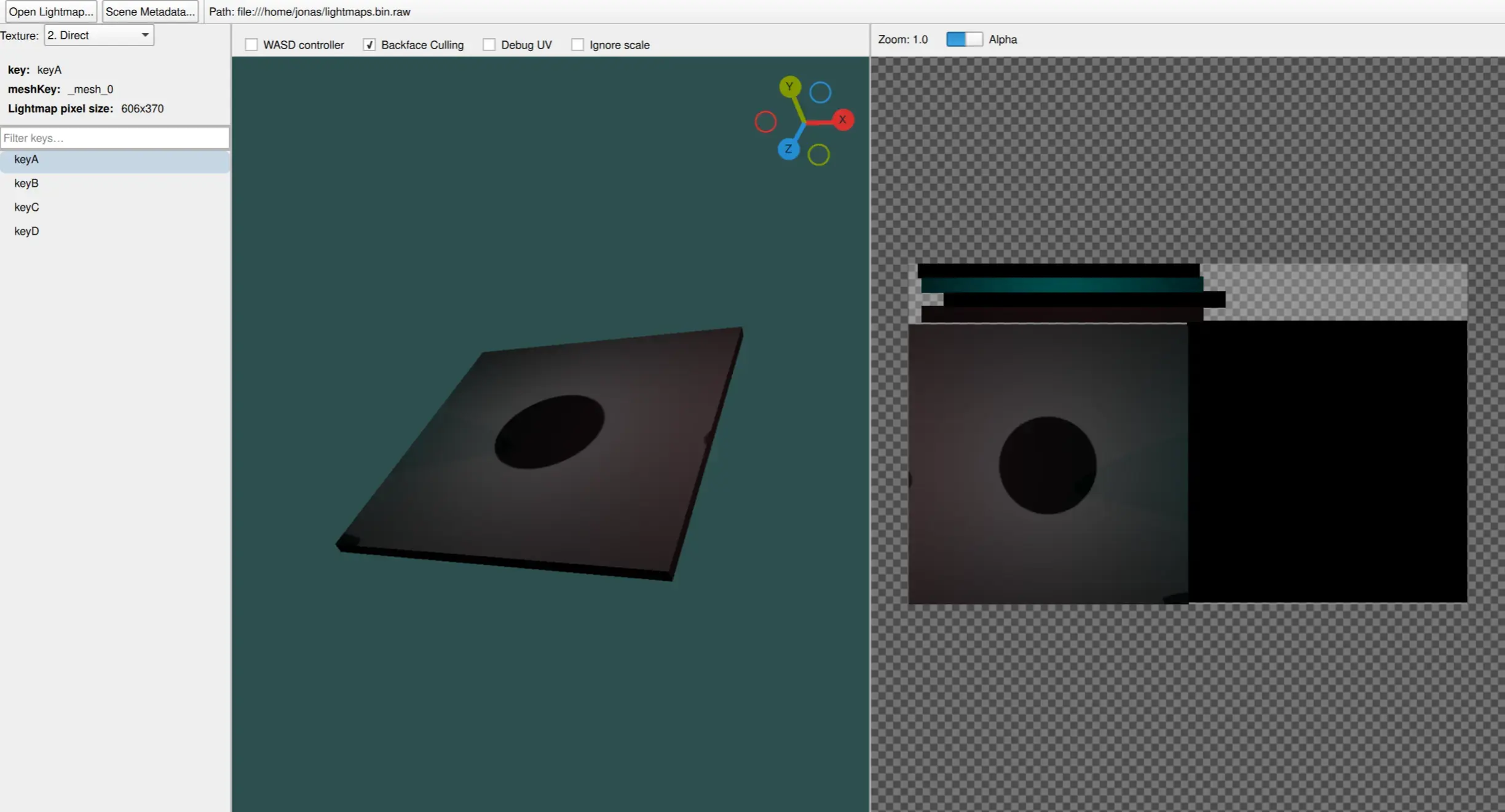
One notable change in Qt 6.10 is that there is now a Lightmapper::source property that specifies one file containing all the lightmaps used in the scene. In older versions, for each Model used in lightmap baking, a mesh and a lightmap texture file was generated. Now all that data is stored in just one file using a custom file-format unique to Qt Quick 3D. This not only simplifies the workflow but also makes it possible to easily inspect this file. For this purpose a Lightmap Viewer application has been created. Using this application you can inspect the generated lightmaps and their respective models.

Qt's 3D lightmap viewer

The above image shows the lightmap viewer with a loaded lightmap file.

Screen-Space Global Illumination

We will now look at a new technique added in Qt Quick 3D as an alternative to baking lightmaps. SSGI (Screen Space Global Illumination) is a real-time rendering technique that simulates realistic indirect lighting (light bouncing off surfaces) using only the data available in the screen’s depth and color buffers. Since this is a dynamic, post-processing effect, it does not rely on pre-baked lightmaps and will react to dynamic changes in the scene.

SSGI can be enabled in Qt 6.11 and later by setting ExtendedSceneEnvironment::ssgiEnabled to true. There are further properties for tweaking the look of the SSGI in ExtendedSceneEnvironment.

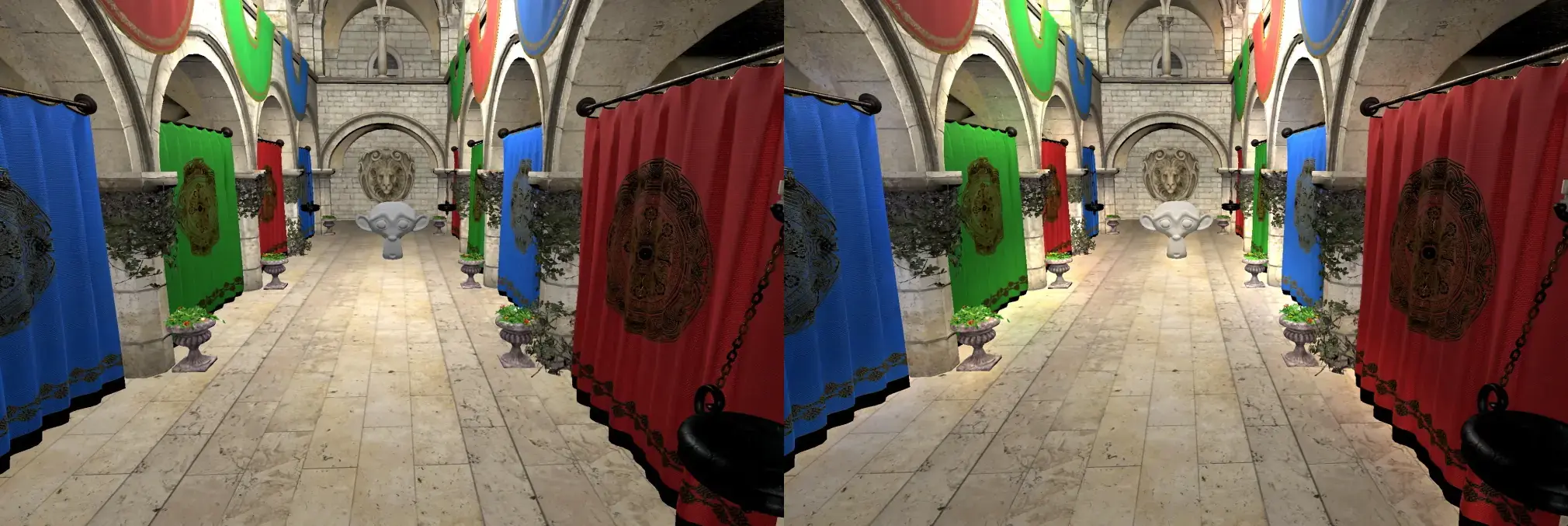
Comparing SSGI (Screen Space Global Illumination) and no global illumination

The above image shows a scene where SSGI is disabled (left) and SSGI is enabled (right). Notice how the monkey head and the curtains get illuminated from reflected light on the floor when SSGI is enabled.

Screen-space Reflections

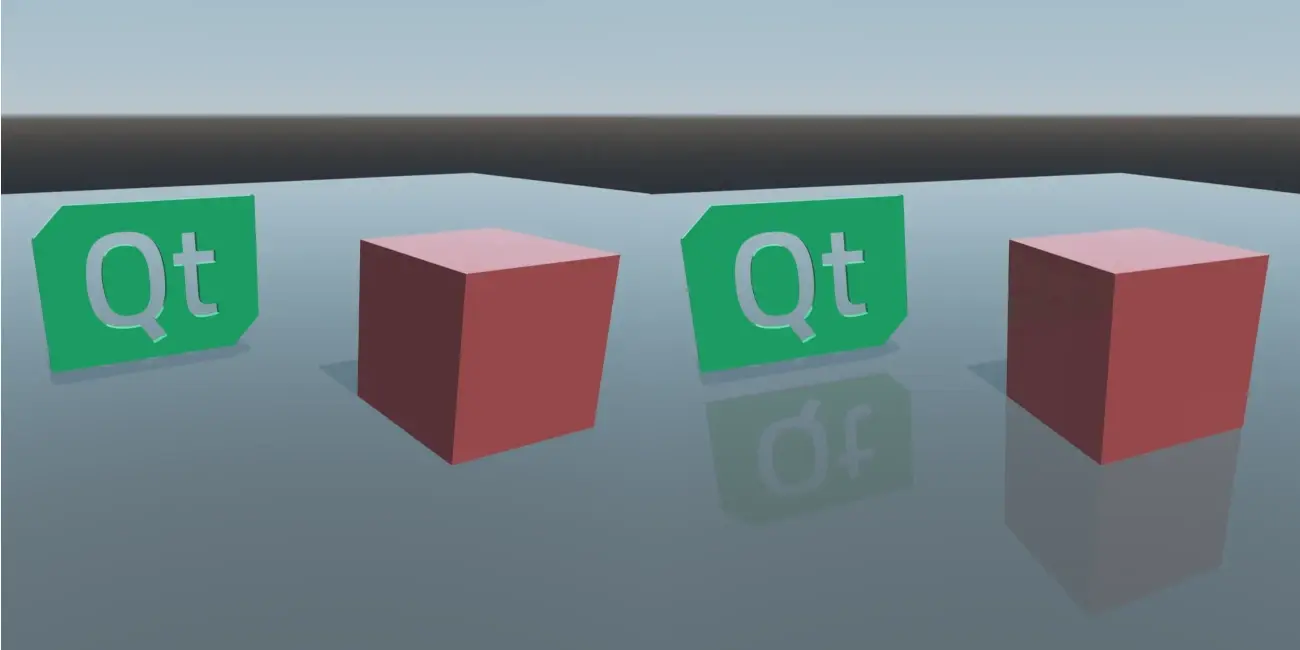
Screen Space Reflections (SSR) is another real-time rendering technique similar to SSGI. Like SSGI, it uses only data available in the screen’s depth and color buffers, but it is used for rendering reflections. It works using a technique called “raymarching” by going through each pixel in the screen and finding and blending the corresponding reflected screen pixel(s).

SSR can be enabled in Qt 6.11 and later by setting ExtendedSceneEnvironment::ssrEnabled to true.

3D rendering with Screen Space Reflections (SSR)

The above image shows a scene where SSR is disabled (left) and SSR is enabled (right).

Closing thoughts

If you are already using the lightmap baking features in Qt Quick 3D, I hope Qt 6.10 brings a boost to what you can achieve visually and performance-wise. If you have not tried it out before, then this is the perfect time to do so. Checkout the baked light map example and the documentation for a good place to start.

For trying out SSGI and SSR you should checkout the ExtendedSceneEnvironment QML type.

I hope you’ve enjoyed this post and look forward to seeing what you will create with Qt!

Qt Quick 3D - Volumetric Rendering Example

I made a volume ray-caster example, and it is part of Qt since version 6.7. The video below shows it rendering a few examples. If you wanna try it out, just download the latest version of Qt with QtQuick3D and it will be a part of the examples. You can find a detailed explanation of the source code at the official qt documentation.

Qt World Summit 22 Presentation

This is a video link to the presentation called “Taking 3D Content to the Next Level with Physics, Global Illumination, Reflections and Spatial Audio” at Qt World Summit 22, that I was a part of. In my segment I present the Qt Quick 3D Physics module introduced in Qt 6.4. A new high-level API for physics simulation with support for simulating static and dynamic rigid bodies, collision shapes, and a character controller.

Qt Quick 3D Physics in Qt 6.4

NOTE: This is a copy-pasted version of my blog post on the Qt blog.

Qt 6.4 includes the new module Qt Quick 3D Physics as tech preview. As the name implies, this is a module that adds physical simulation capabilities on top of Qt Quick 3D. In particular, it enables rigid body simulation using simple primitives (spheres, boxes, planes and capsules) as well as convex- and triangle meshes and heightmaps. Physical properties such as mass, density, gravity and friction are customizable. This makes it possible to create physically correct behavior in 3D scenes without having to handcraft animations.

Adding physics to your scene is quite easy. The following snippet is all it takes to create and render a whole scene with a plane and a box interacting with each other:

import QtQuick
import QtQuick3D
import QtQuick3D.Physics

Window {
    visible: true
    DynamicsWorld {}

    View3D {
        anchors.fill: parent

        PerspectiveCamera {
            position: Qt.vector3d(0, 100, 500)
            clipFar: 5000
            clipNear: 1
        }

        DirectionalLight {
            eulerRotation.x: -45
            eulerRotation.y: 45
            castsShadow: true
        }

        StaticRigidBody {
            position: Qt.vector3d(0, 0, 0)
            eulerRotation: Qt.vector3d(-90, 0, 0)
            collisionShapes: PlaneShape {}
            Model {
                source: "#Rectangle"
                scale: Qt.vector3d(10, 10, 10)
                materials: PrincipledMaterial {
                    baseColor: "green"
                }
                castsShadows: false
                receivesShadows: true
            }
        }

        DynamicRigidBody {
            position: Qt.vector3d(0, 200, 0)
            collisionShapes: BoxShape {}
            Model {
                source: "#Cube"
                materials: PrincipledMaterial {
                    baseColor: "yellow"
                }
            }
        }
    }
}

And this is how it looks:

Simple Physics scene

Qt Quick 3D Physics is a pure QML API and is currently available as a tech preview in Qt 6.4. The documentation comes with a handful of explanatory examples showing off the different capabilities of the module. This is the best place to start if you want to try it out yourself. There is a lot more that could be said about this module but since a picture says a thousand words I imagine this video of the examples will say even more.

I hope you found this blog post interesting and I look forward to seeing what you will create with this new module.